Editing Photos
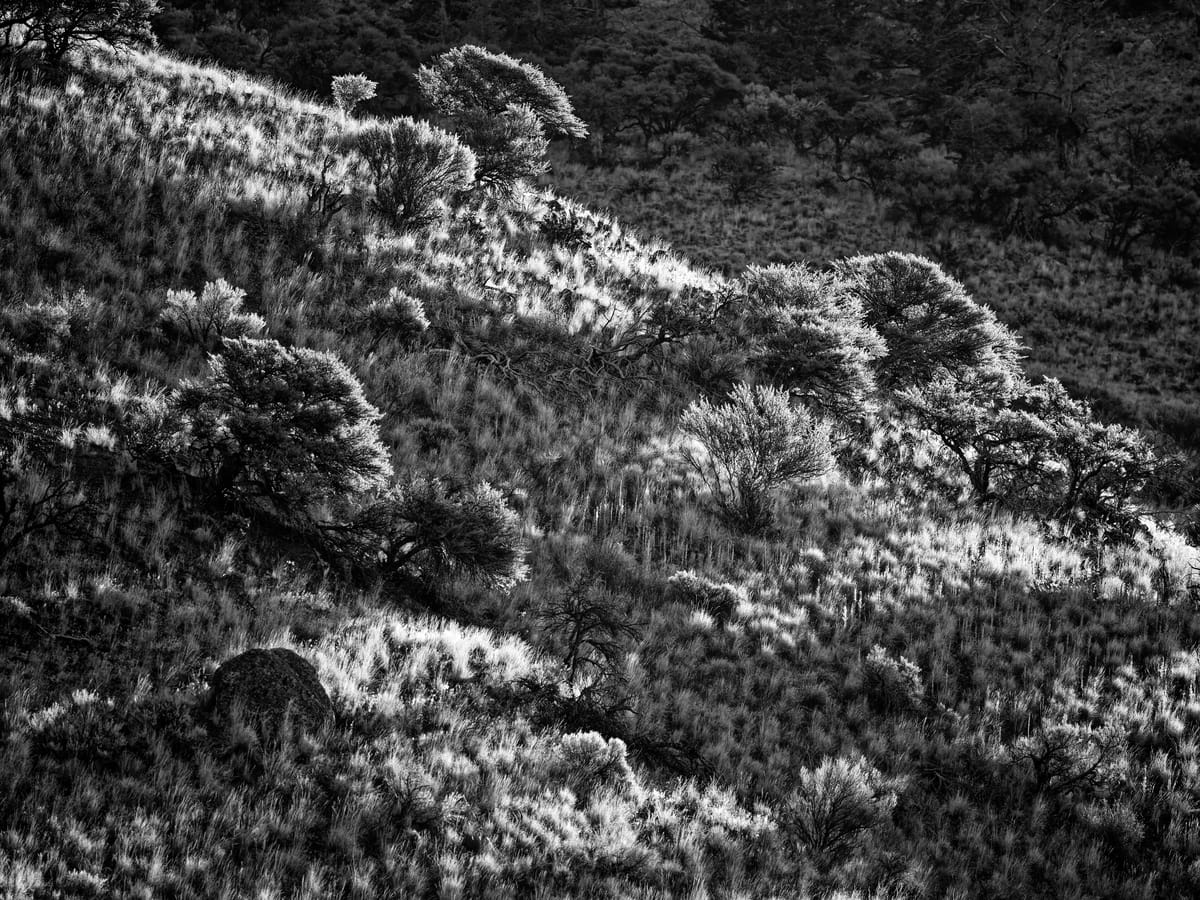
This is probably the area of photography I enjoy the least—and that says a lot, considering I once developed my own film and printed images in the darkroom.
First and foremost, I’m a cheapskate. I refuse to pay for a subscription to editing software like Adobe Photoshop. For years I got by with the simpler Photoshop Elements that came bundled with cameras or scanners.
A few years ago, after experimenting with Darktable and Gimp, I purchased Affinity. I bought version 1.0 just a month before 2.0 was released, but even so, it’s a reasonably good package for my needs. My workflow is simple: mostly brightness and contrast, with occasional color balance adjustments. I avoid saturation whenever possible, since I’ve found myself overusing it. (In color photography, saturation and contrast often overlap—do contrast first, and you may not need saturation at all.)
I dabble in masks when time allows, and while Affinity’s approach felt complex at first, I’ve gotten the hang of it. Still, I don’t like spending hours on a single photo. When I travel, I usually transfer images to my iPad and rely on the built‑in Apple Photos app. Most of the time, I hit the magic wand, dial back saturation, add a touch of warmth, and I’m satisfied. That’s the workflow behind 90% of what I’ve posted this year.
As a rule, I don’t work with RAW files. I’ve never found them to offer much advantage over high‑quality JPEGs. Fujifilm’s film simulations already produce excellent images, and going back to RAW often means trying to recreate results that are already great. With Affinity, the adjustments felt limited, and in the end, I was still finishing the edit on a JPEG from the RAW edit.
Recently, I discovered a photographer on YouTube with similar values who had switched to DxO, a program specializing in RAW processing. I downloaded the trial, and I’m sold—I’ve purchased a full license for DxO PhotoLab. What won me over were the preset lighting adjustments, which bring most photos to a strong starting point. From there, everything can be fine‑tuned.
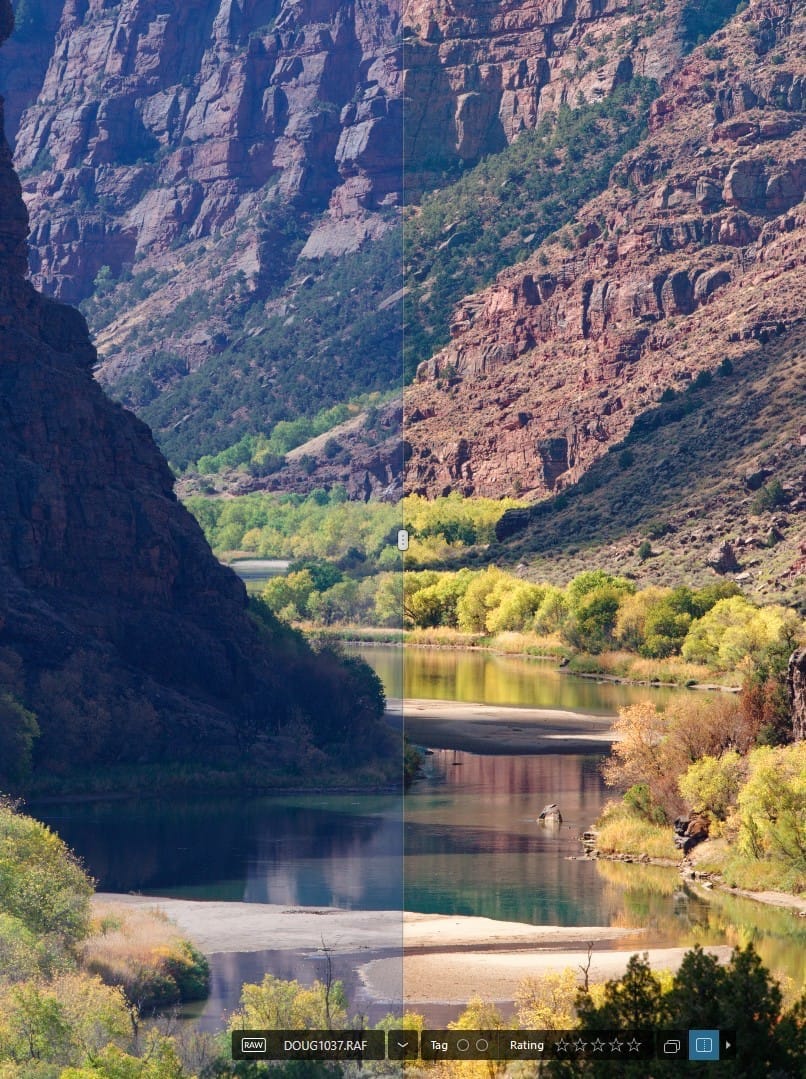
Additionally, they have corrections for most major cameras and lenses to maximize sharpness and color and minimize distortion.
Photolab also allows me to start with the film simulations from my camera applied to the RAW file if I wish.
If you shoot handheld a lot like I do then you will be used to using high ISOs especially as we enter the dark days of winter. Photolab has a range of noise reduction features that really do an amazing job. I really had no idea how good this could get. The result is smooth and creamy inn out-of-focus areas. Probably only visible on enlargements it does provide some extra confidence.
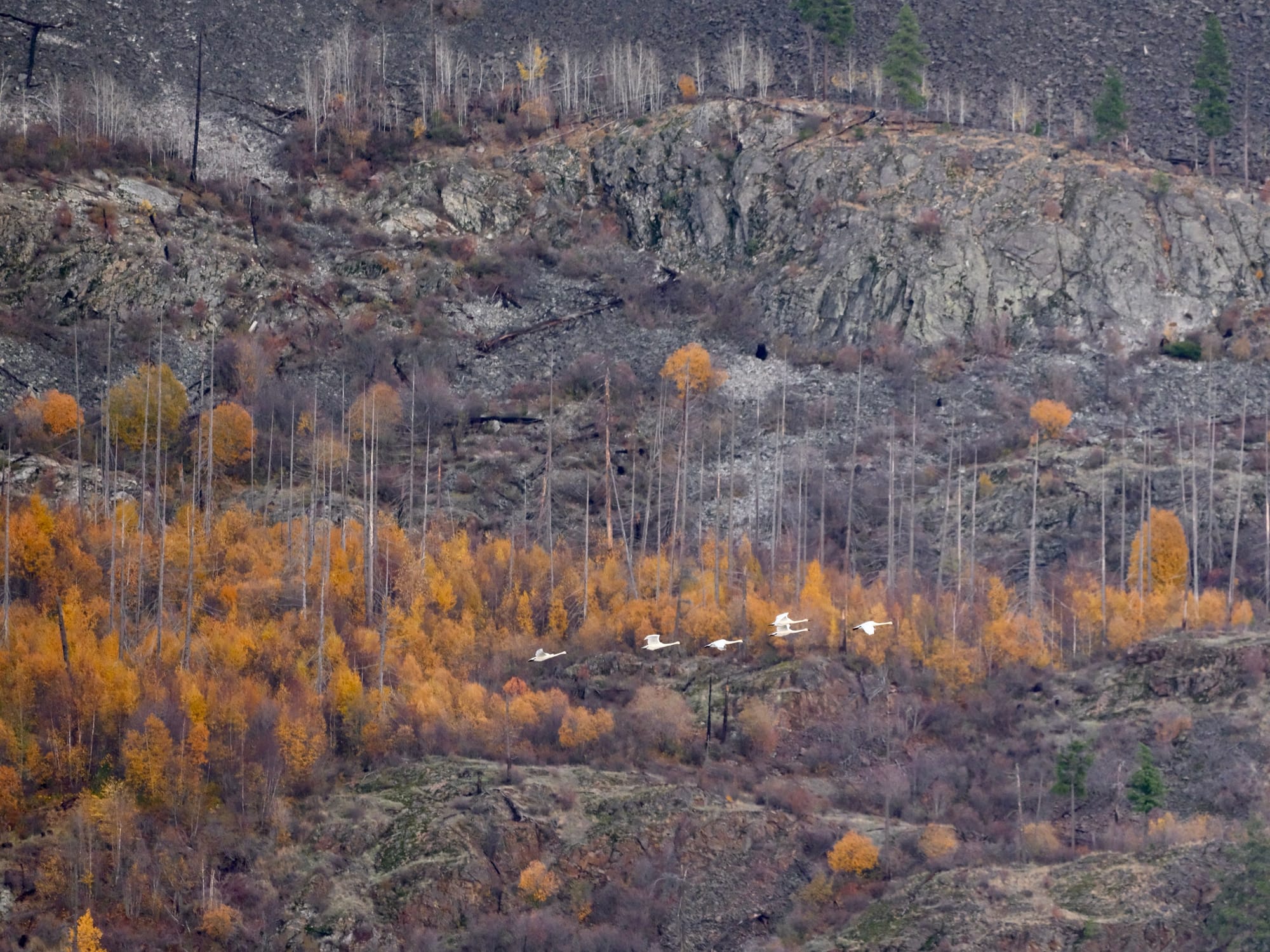
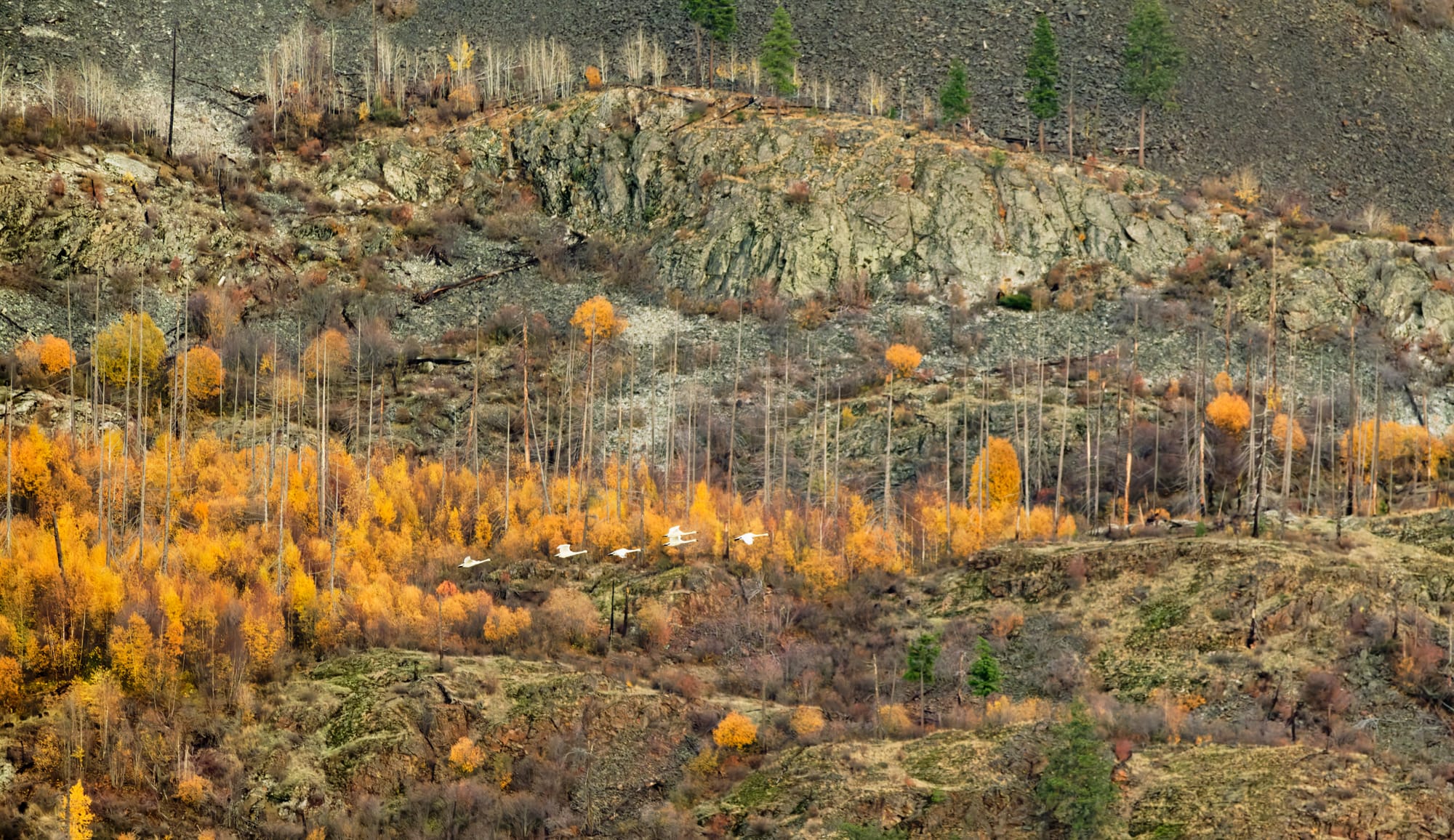
In the verson above I do get different results. Sometimes the difference is just because you take a different approach. In both cases I tried for a warmer version but the lower one definitly shows more of that. It is also much sharper and though hard to see on the web the noise is much improved as this was shot on an overcast day with a high ISO of about 2500. I plan to enlarge this to 12” x 16“ so that will matter.
In fact one possible flow is to apply the noise reduction to the RAW files then export as JPEG or TIFF before importing into another editing suite. I have setup Photolab to optionally export to Affinity to then pick up editing a JPEG for some final touches like adding borders or a vignette.
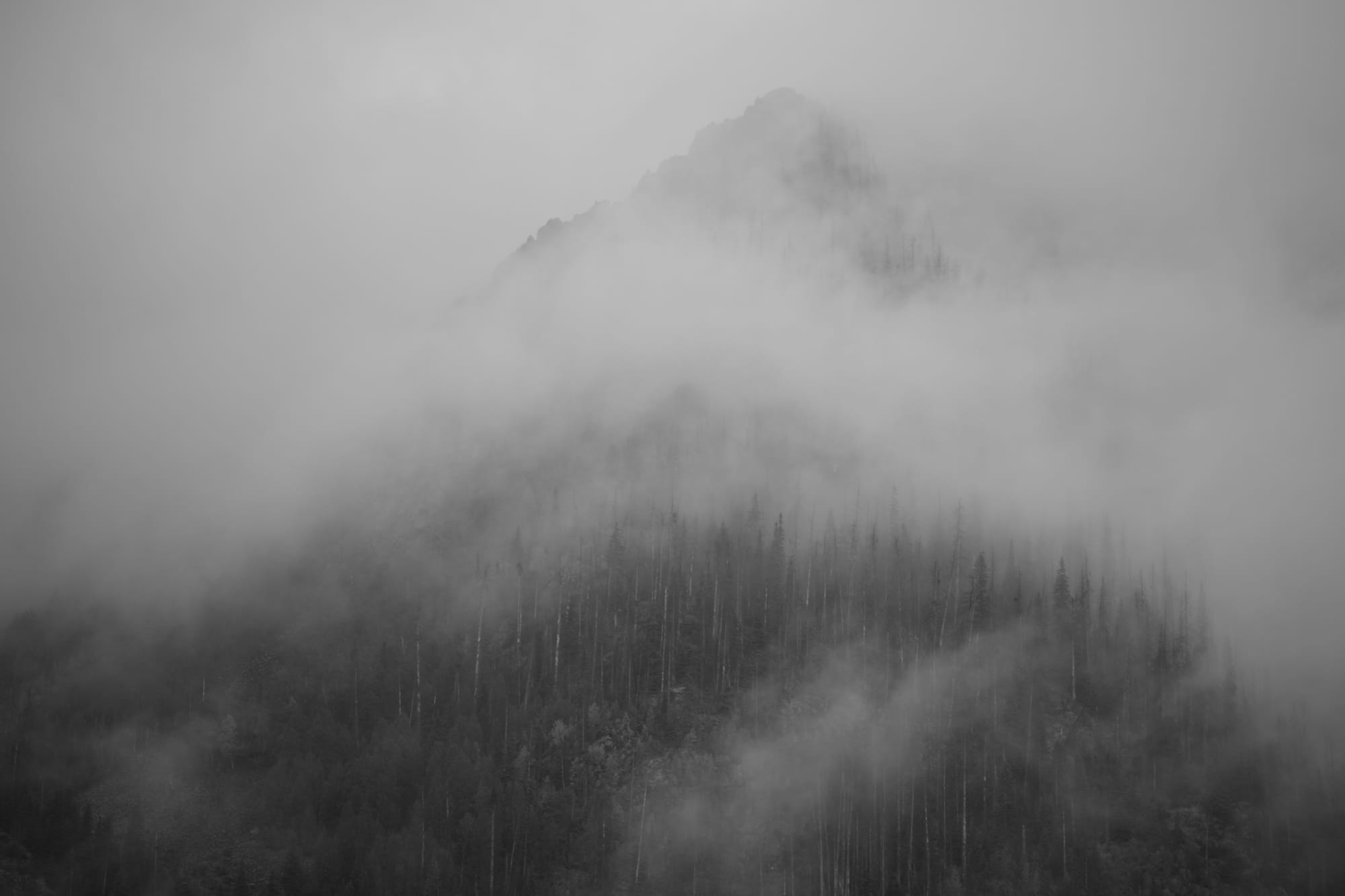
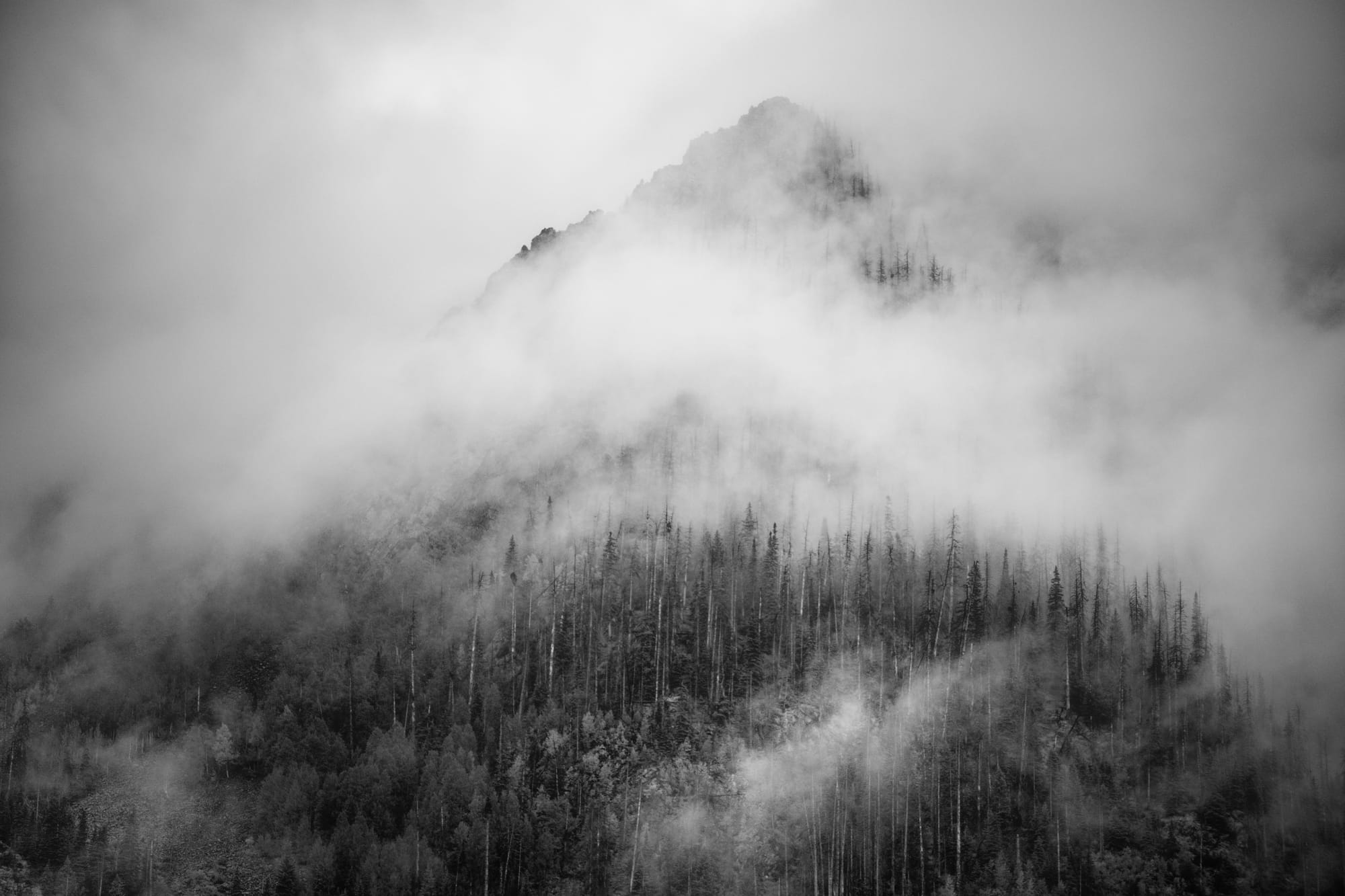
iPad JPEG version on left and Photolab on right. The PhotoLab version took form quickly then I added 4 layers of gradients to improve the image.
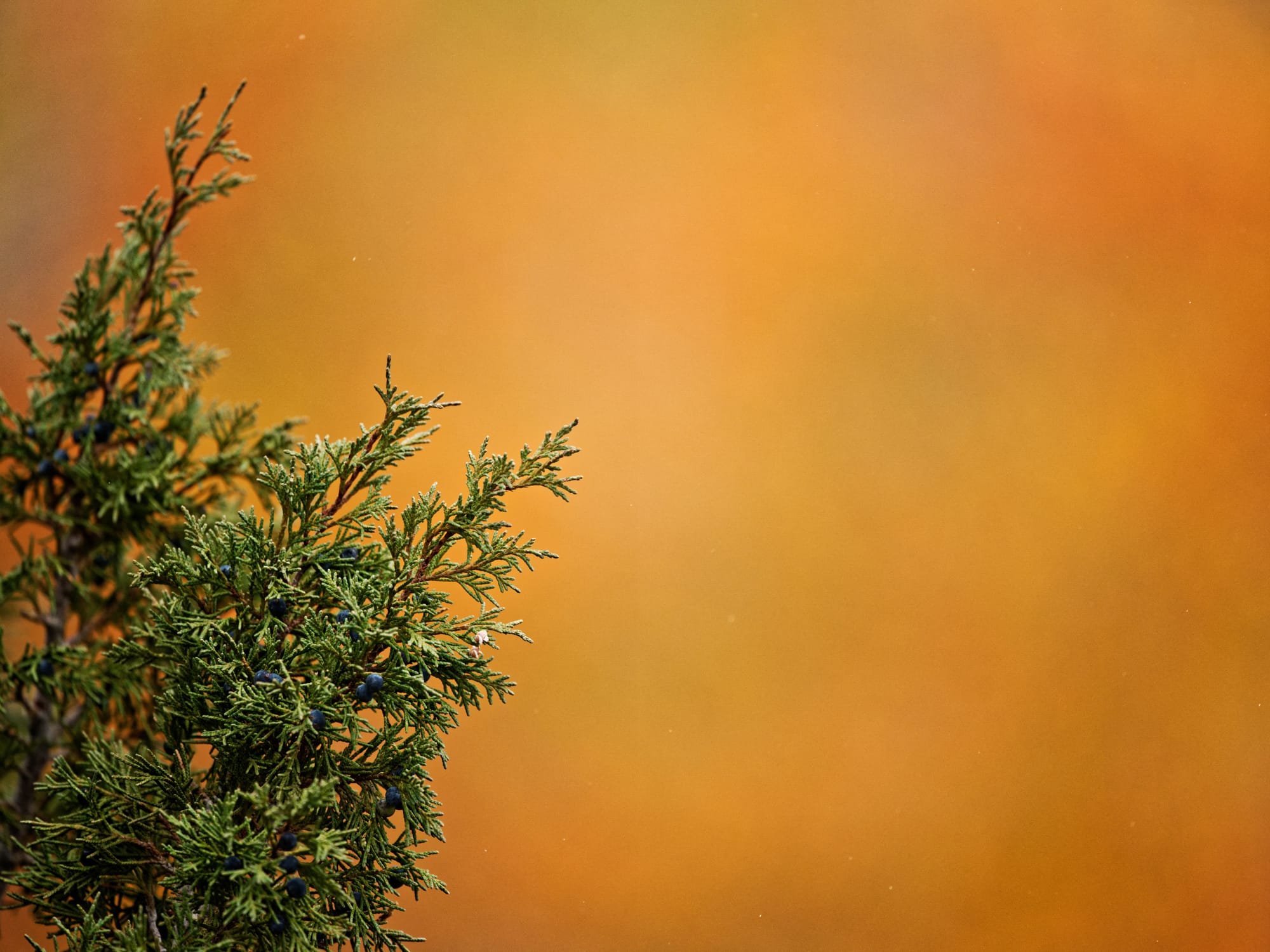
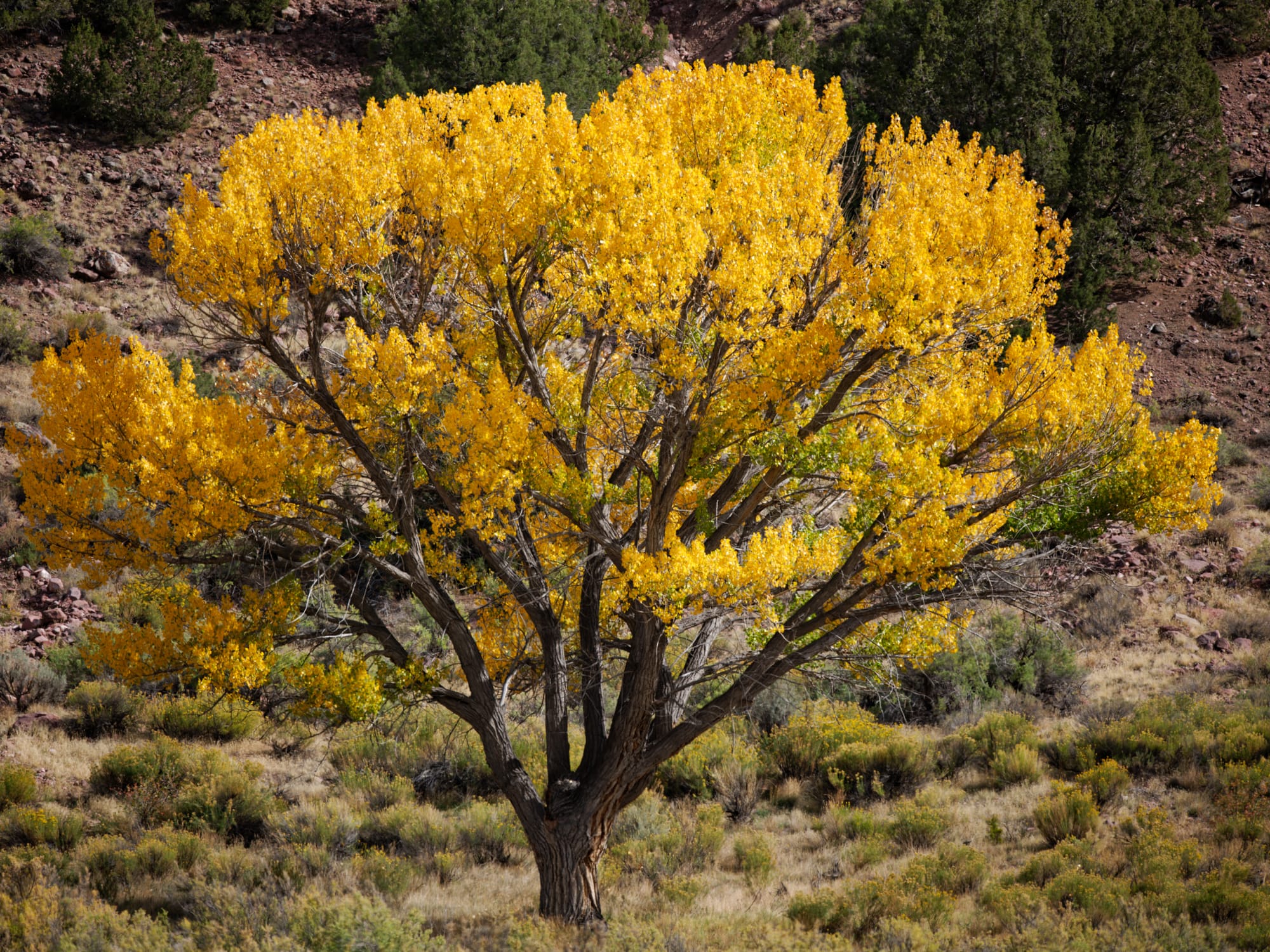
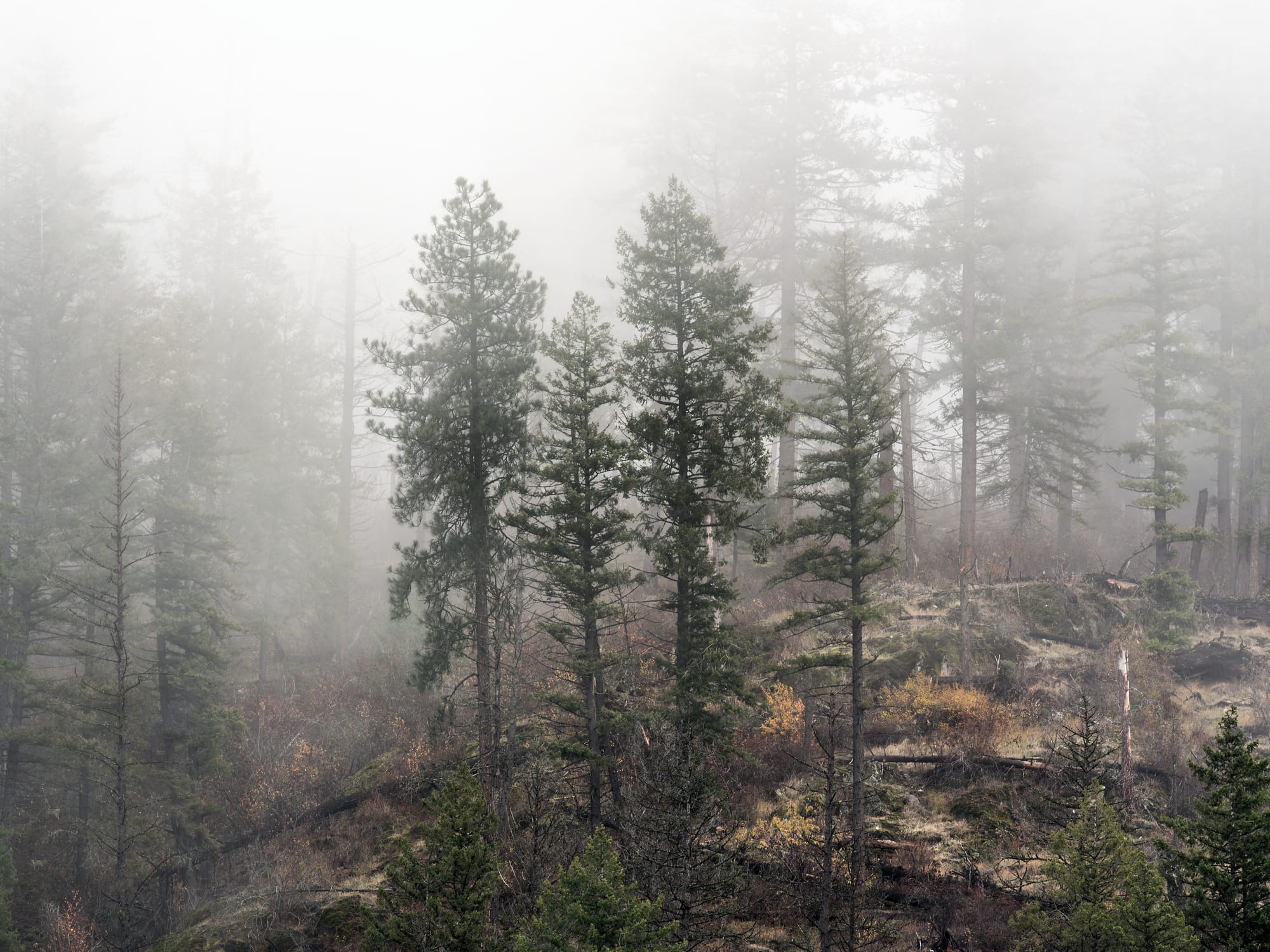
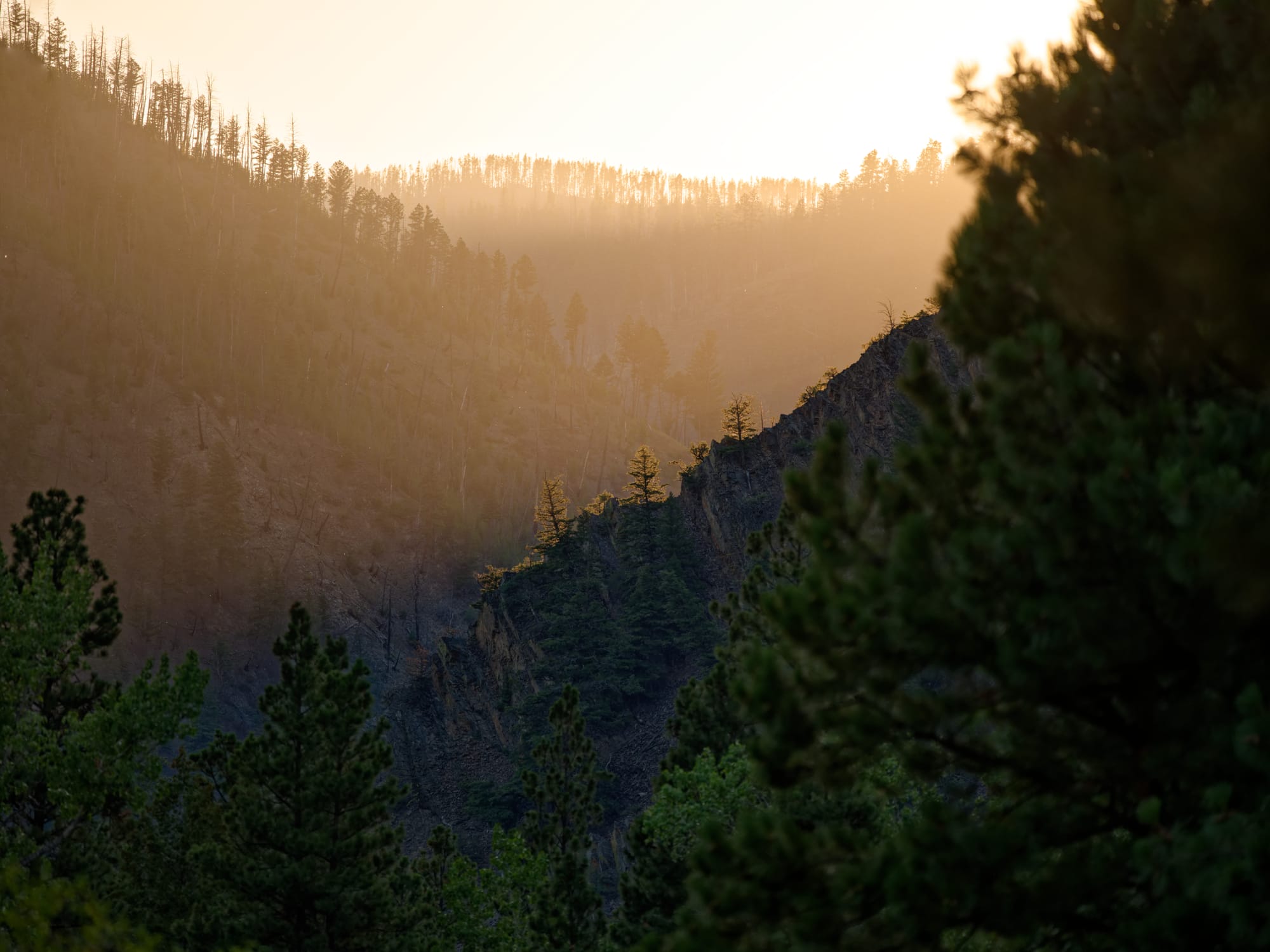
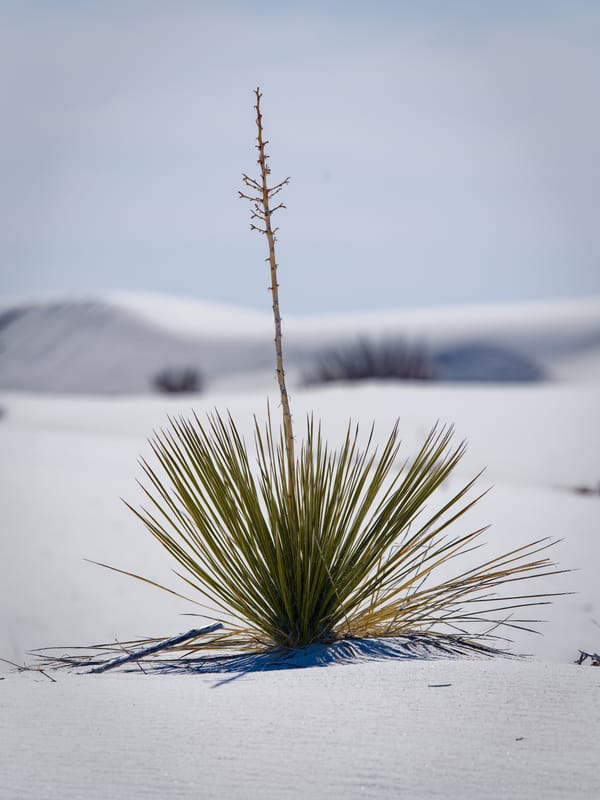
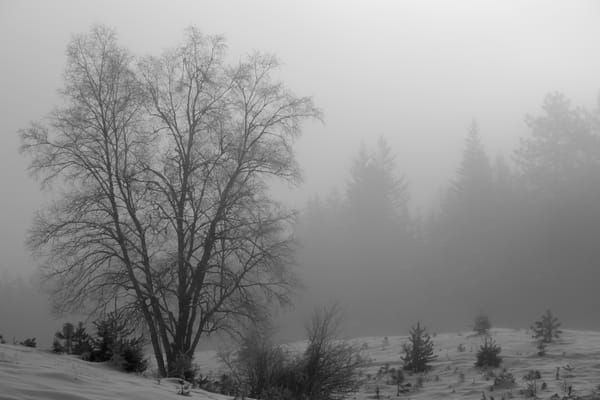
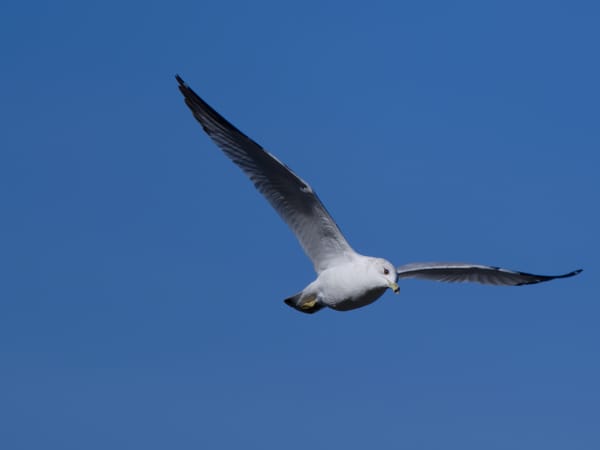
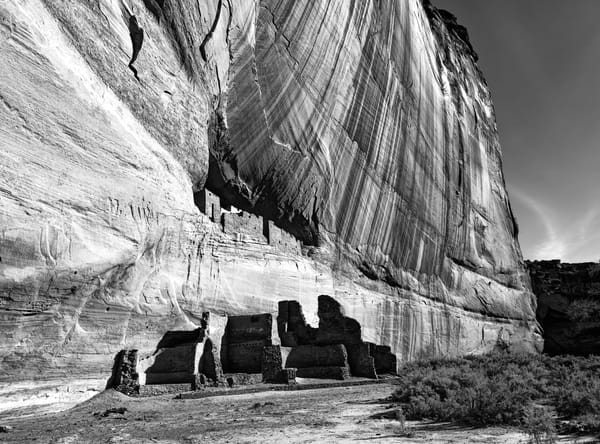
Some additional Photolab processed images. (The bottom right brought detail from the shadows I could not get to before.)
DxO Photolab lacks some things as it specializes in RAW files. It will not recognize JPEGS. It will not create a canvas and allow the placement of borders. It lacks layers and opts instead for masks which are very flexible.
It has a number of selection tools for mask creation. Each set of masks becomes in essence a layer that can be turned on and off. Each mask in turn allows a full suite of contrast, exposure, sharpening, and color tools to apply separately for each layer. A short tutorial later and I was using it immediately. To great effect. Stayed tuned as I plan to show how I used masks to pimp up a photo.
 Doug Morse
I do not plan to delete Affinity. As I said it does fill some gaps and I may find it complementary in some ways. But I have revised my view of RAW processing as a result of it.